Here's the situation: AI writing tools are everywhere, your professors know it, and detection software is standard at most universities now. The students who are fine are the ones who learned to use AI and understand what their own writing looks like. The students who aren't fine are the ones submitting AI drafts unchanged and hoping nobody notices.
That's not a sustainable strategy. Here are five tools that actually help — before you submit anything.
Why "Check Before You Submit" Matters More Than Ever
Most academic integrity problems in 2026 aren't about students who deliberately tried to cheat. They're about students who used AI to draft something, made edits, thought it looked human enough, and submitted without checking. Then Turnitin or GPTZero flagged it.
The fix is simple: run your own detection scan before your professor does. If there's a problem, you have time to fix it. If there isn't, you know you're fine.
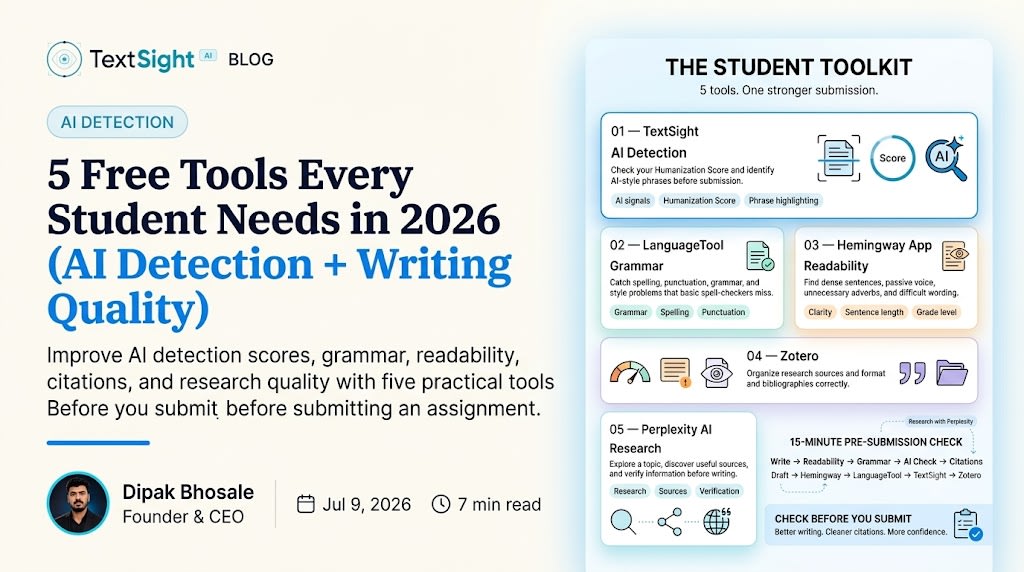
These five tools cover every dimension of that process — AI detection, grammar, readability, citations, and research. Used together, they represent a complete pre-submission check that takes about 15 minutes and can save you enormous headaches.
1. TextSight — AI Detection with a Humanization Score
What it does: Scans your writing and returns a Humanization Score from 0 to 100. Higher means more human. Lower means AI patterns are showing up in your text.
Free tier: 3 scans per day, no signup required. Just paste your text at textsight.ai.
Best use case: Running your essay, paper, or assignment before submission to see how it reads to an AI detector. The score tells you if you're in the safe zone or if something needs work.
What makes it different from other AI detectors: Most tools give you a binary result or a vague percentage. TextSight gives you a score and shows you which specific phrases are dragging it down. The AI Vocabulary Highlighter marks the exact sentences where AI-typical language is appearing — stuff like "it's worth noting," "delve into," or overly tidy transitions that humans rarely write naturally.
The score thresholds are worth knowing:
- 0–40: You'll almost certainly get flagged
- 41–60: Grey zone — risky
- 61–74: Lower risk, but not safe
- 75–84: Passes most institutional detectors
- 85–100: Reads as strongly human
For most assignments, aim for 75+. For creative or personal writing, 85+ is achievable.
Honest limitation: Five scans a day is enough for most students most of the time, but if you're submitting multiple assignments in a crunch period, you might hit the limit. Starter is $9.99/month, or $7.49 billed annually, which is less than most streaming subscriptions, and lifts you to 20 checks a day.
The use case you might not think of: TextSight isn't just for checking if AI wrote your stuff. It's also useful for understanding what makes writing sound human. The vocabulary highlighter teaches you something about your own writing patterns over time. Students who've used it regularly for a semester tend to start self-editing differently — catching AI-typical phrases before they even run a scan.
2. LanguageTool — Grammar Without the Paywall Harassment
What it does: Checks grammar, spelling, punctuation, and style. Catches errors that spell-checkers miss — subject-verb disagreement, dangling modifiers, incorrect comma usage, passive voice overuse.
Free tier: Unlimited text checks in the browser extension; some premium features (advanced style suggestions, certain language checks) are paywalled. The free version handles real grammar well.
Best use case: Catching the mechanical errors that cost you points on grading rubrics. Professors notice misplaced commas. They notice repeated sentence structures. LanguageTool catches both.
Why it beats Grammarly's free tier: Grammarly's free version has gotten stingier — it pushes premium upgrade prompts constantly and withholds style suggestions. LanguageTool gives you more substance without the constant upsell. Both are worth knowing, but LanguageTool is the better free experience.
Honest limitation: LanguageTool sometimes flags correct sentences as errors, particularly with complex academic phrasing. Always apply judgment rather than accepting every suggestion automatically. Treat it as a second reader, not an authority.
3. Hemingway App — Readability at a Glance
What it does: Pastes into a web editor and color-codes your writing by problem type — hard-to-read sentences (yellow), very hard sentences (red), passive voice (green), adverbs (blue), overly complex phrases (purple). Also gives you a grade level score.
Free tier: Fully free in the browser at hemingwayapp.com. The desktop app costs $19.99 one-time, but you don't need it.
Best use case: Spotting where your writing gets dense and confusing. Academic writing can tip into impenetrability. If your essay is full of red-highlighted sentences, your professor is fighting through them too.
The AI detection angle: This matters more than students realize. AI-generated text tends to score in a very narrow readability band — usually around Flesch-Kincaid Grade Level 10 to 12, with very little variance paragraph to paragraph. Human writing has readability variation. Some paragraphs are Grade 8. Some are Grade 14. The consistency of AI writing is part of what detection tools pick up on.
Hemingway App helps you naturally vary your writing complexity, which is both good for human readers and genuinely helpful for AI detection scores.
Honest limitation: Hemingway sometimes punishes necessary complexity. A legal brief or a chemistry lab report should have technical sentences. The app doesn't understand context — it just flags density. Use it directionally, not prescriptively.
4. Zotero — Free Citation Management That Actually Works
What it does: Stores, organizes, and formats your research sources. Browser extension saves a source with one click. Word processor plugins auto-insert citations in APA, MLA, Chicago, Harvard, or any other format you need.
Free tier: Fully free for the core product. 300MB of cloud storage is included; more costs extra (but you probably don't need more than 300MB for citations).
Best use case: Any paper that requires more than five sources. Zotero saves you the 45 minutes of manually formatting a bibliography and eliminates the citation errors that come from doing it by hand.
Why it matters for writing quality: Students who manage citations well write better papers. It's not causation, exactly — it's that the students who actually engage with their sources and cite them properly are the ones who've done enough reading to write with depth. Zotero makes that process frictionless.
Honest limitation: The learning curve is steeper than just Googling "APA citation generator." Takes about an hour to set up properly. That investment pays off fast — by the second paper, you'll be glad you did it.
Tip: Install the browser extension and the Word/Google Docs plugin at the same time. Neither one is useful without the other.
5. Perplexity AI — Research Assistance Done Right
What it does: AI-powered research tool that searches the web, cites sources, and answers research questions with links to the actual pages it drew from.
Free tier: Unlimited searches with a daily limit on the more powerful model; standard searches are genuinely free.
Best use case: Starting a research topic you know nothing about. Perplexity gives you a summary with sources, so you can follow the citations to actual papers and articles rather than just taking the AI's word for it.
The ethical use context: This is the part that matters. Perplexity is a research tool, not a ghostwriter. The right workflow is: use Perplexity to find relevant sources and get your bearings on a topic, then read the actual sources, then write in your own words with your own analysis. That's using AI as a research assistant — which is legitimate — rather than as a substitute for your own thinking — which isn't.
The distinction is important. AI-assisted research that leads to original writing is different from AI-generated writing that replaces original thinking. Most academic integrity policies, written carefully, allow the former and prohibit the latter.
Honest limitation: Perplexity's citations are usually good but occasionally hallucinated or misattributed. Always verify that a cited source actually says what Perplexity claims it does. Don't cite a source you haven't at least skimmed.
How to Use These Together: A Pre-Submission Checklist
Here's the 15-minute workflow that covers all your bases:
-
Finish writing. Don't run any checks mid-draft — it breaks your flow.
-
Paste into Hemingway App. Fix the red sentences (very hard to read). Yellow ones are usually fine. Aim for Grade 10–12 on academic work.
-
Run through LanguageTool. Fix the genuine grammar errors. Question anything that feels wrong.
-
Scan in TextSight. Check your Humanization Score. If it's below 65, look at what the AI Vocabulary Highlighter is flagging and revise those specific passages. Re-scan.
-
Check your bibliography in Zotero. Make sure every citation in the text has an entry, every entry is formatted correctly.
-
Submit.
That's it. This doesn't take long once the tools are set up. And it gives you actual confidence when you submit — you know what your writing looks like from every angle that matters.
The Bigger Picture
These tools aren't a substitute for developing your own writing skills. They're diagnostic aids. The students who get the most out of TextSight, Hemingway, and LanguageTool are the ones who use the feedback to actually understand their writing — not just fix what's flagged and move on.
A Humanization Score of 58 isn't just a warning. It's information about how you wrote. An AI Vocabulary Highlighter flag on "it's worth noting that" isn't just a problem to delete. It's a signal to think about why you wrote that phrase and what you actually meant.
The tools that help you write better are the tools that make you a better writer. That's the whole point.
Related reading:
- How to Avoid AI Detection as a Student in 2026
- My Essay Was Flagged as AI But I Wrote It
- How to Humanize ChatGPT Text
- Readability Scores Explained: Flesch-Kincaid and AI Detection
Try it on your own writing